

Introduction
Classic Nintendo games are enjoying a major comeback, and Dolphin emulator ROMs are a big reason why. Gamers today want flexibility—higher resolutions, smoother frame rates, and the ability to play on modern devices without relying on aging consoles. Dolphin Emulator makes this possible, but many beginners jump in without understanding how ROMs work, which settings matter, or what is legally safe. This guide is designed to explain Dolphin emulator ROMs in simple, beginner-friendly language so you can start playing with confidence.
What Is Dolphin Emulator?
Dolphin Emulator is a powerful software application that allows computers and mobile devices to run Nintendo GameCube and Wii games. Instead of using original hardware, Dolphin simulates how the console works, translating game data into instructions your system can understand.
Because Dolphin is open-source and actively developed, it supports modern features such as HD rendering, custom controllers, and performance improvements. To actually play games, however, Dolphin requires Dolphin emulator ROMs, which contain the game data.
What Are ROMs?
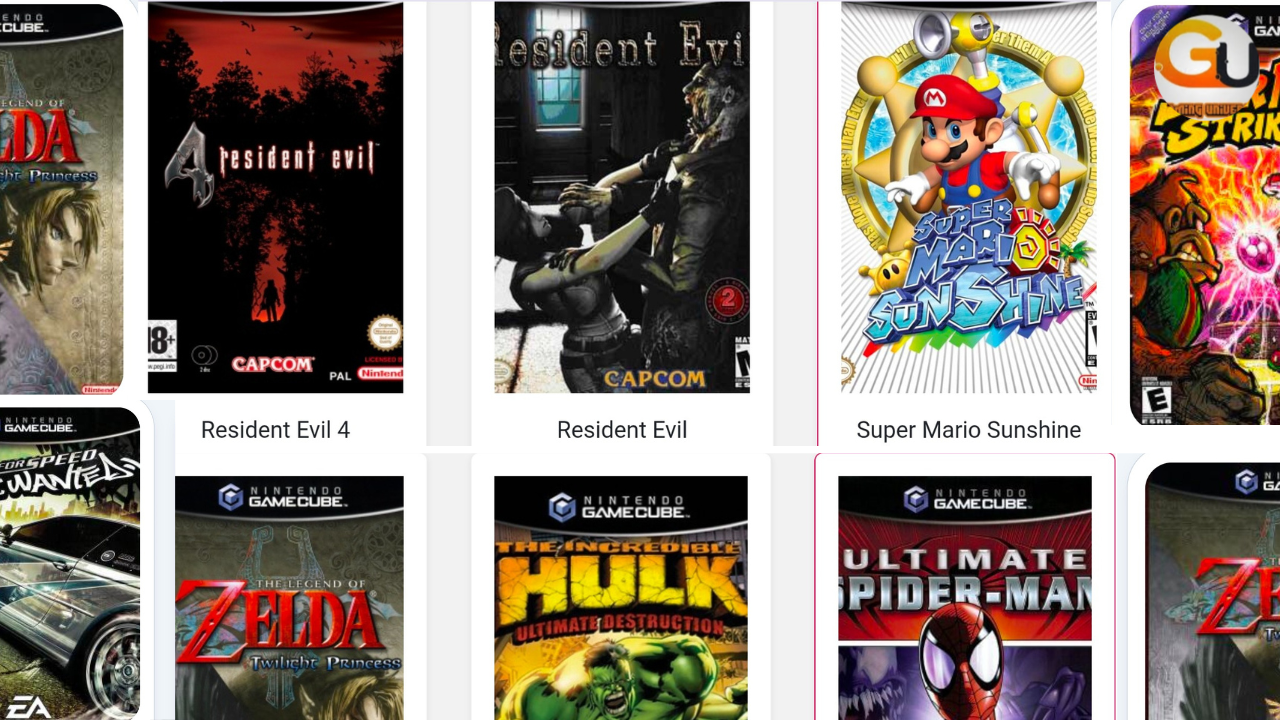
A ROM is a digital version of a game that was originally stored on a physical disc. In the case of Dolphin emulator ROMs, these files represent complete GameCube or Wii games that Dolphin can load and run.
Think of ROMs as virtual discs. Instead of inserting a DVD into a console, you open a file on your device. The emulator reads this file and recreates the gameplay experience through software.
ROM Formats Supported by Dolphin
Dolphin Emulator works with several ROM formats, each designed for different needs:
- ISO files are full disc copies with no compression. They are simple to use but take up more storage.
- WBFS files are commonly used for Wii games and remove unnecessary data to reduce file size.
- RVZ files are Dolphin’s recommended format, offering high compression without affecting game quality.
- GCZ files are compressed formats mainly used for GameCube titles.
For most users, RVZ is the best option because it balances performance, compatibility, and storage efficiency when using Dolphin emulator ROMs.
How to Use ROMs in Dolphin Emulator
Getting started with Dolphin emulator ROMs is easy once everything is set up:
- Install Dolphin Emulator on your device.
- Open the program and complete the initial configuration.
- Choose a folder where your Dolphin emulator ROMs are stored.
- Let Dolphin scan the folder and display your games.
- Select a game and launch it.
After setup, Dolphin automatically remembers your ROM library, making future access quick and simple.
Recommended Settings for Beginners
New users should avoid changing too many options at once. Dolphin’s default settings are already optimized for most systems, but a few adjustments can improve the experience with Dolphin emulator ROMs:
- Choose a graphics backend compatible with your system, such as Vulkan or DirectX.
- Increase internal resolution slightly for better visuals without hurting performance.
- Enable shader compilation options to reduce stuttering.
- Leave advanced enhancements disabled until you are familiar with the emulator.
These basic tweaks provide stable gameplay while keeping things simple.
Safety Concerns You Should Know About
Dolphin Emulator itself is completely safe to use. The main risks come from downloading Dolphin emulator ROMs from untrusted sources. Some websites distribute files that include malware, broken data, or misleading downloads.
To stay safe, always use verified tools and avoid suspicious sites. The safest approach is creating ROMs from your own game discs, which also avoids file integrity issues.
Understanding the Legal Side
The legal status of Dolphin emulator ROMs depends on how they are obtained. Dolphin Emulator is legal software because it does not include Nintendo’s copyrighted code. ROMs, however, are a different matter.
In many regions:
- Making a ROM backup from a game you own is generally acceptable.
Because laws vary by country, it’s important to understand local regulations and make informed choices.
Frequently Asked Questions
Can Dolphin emulator ROMs run on mobile devices?
Yes, Dolphin Emulator supports Android, but performance depends on your phone’s processor and GPU.
Do I need a powerful PC to use Dolphin emulator ROMs?
Most games run well on mid-range systems, but demanding titles benefit from stronger CPUs.
Is multiplayer possible with Dolphin Emulator?
Yes, Dolphin supports local multiplayer and online play through its Netplay feature for compatible games.
Conclusion
Dolphin Emulator opens the door to experiencing classic Nintendo games in new and exciting ways, and Dolphin emulator ROMs are the foundation of that experience. By understanding what ROMs are, which formats work best, how to configure Dolphin, and how to stay safe and legal, beginners can avoid common mistakes.
Take your time, start with basic settings, and focus on learning how the emulator works. When used responsibly, Dolphin emulator ROMs provide one of the most flexible and enjoyable ways to revisit GameCube and Wii games on modern hardware.