

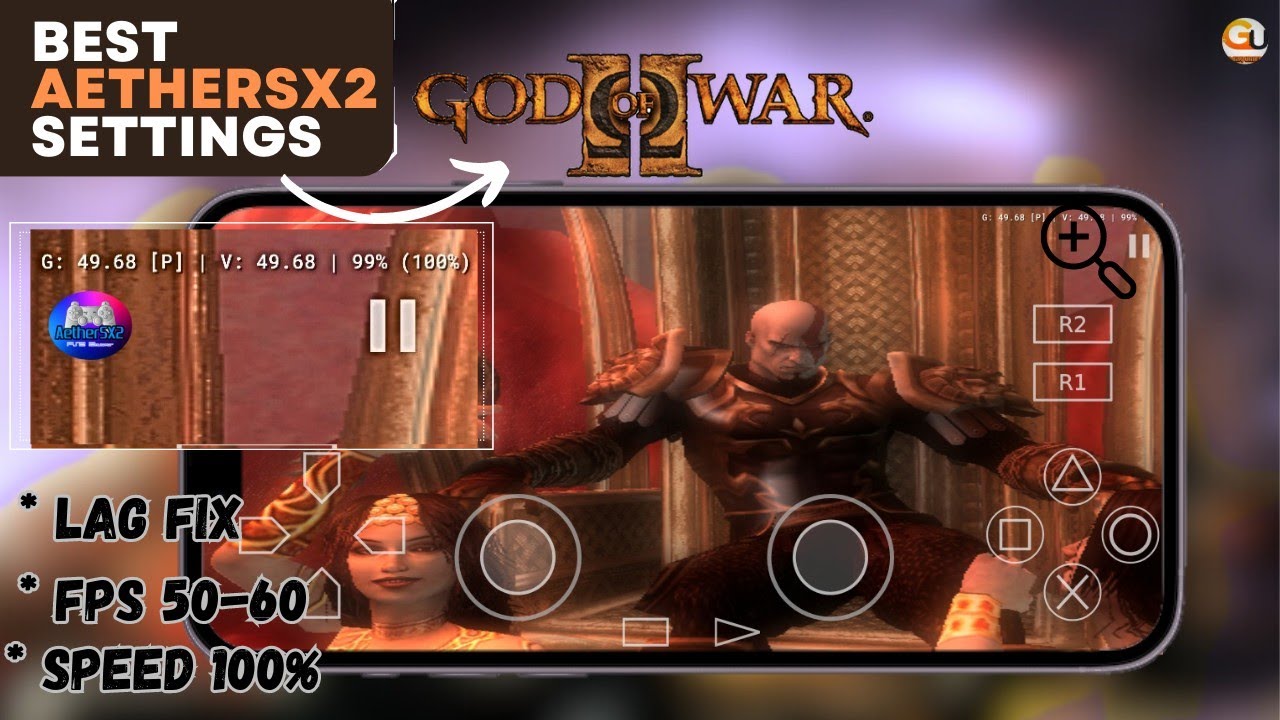
If you want smooth PS2 gameplay on your Android phone, using the Best AetherSX2 Settings is extremely important. Many users install AetherSX2 but face lag, frame drops, or overheating because the default configuration is not optimized for their device.
AetherSX2 is the best PS2 emulator for Android, but many users face lag, low FPS, or heating issues because of wrong settings. In this guide, you’ll learn the best AetherSX2 settings for Android to get smooth gameplay, better graphics, and stable FPS on both low-end and high-end phones.
What Is AetherSX2 Emulator?
AetherSX2 is a PlayStation 2 emulator for Android that allows you to play original PS2 games like God of War 2, GTA San Andreas, and Devil May Cry directly on your smartphone.
Since PS2 games are heavy, correct settings are required to get the best performance.
Why Best AetherSX2 Settings Matter
Using the Best AetherSX2 Settings helps you:
- Increase FPS
- Reduce lag and stutter
- Improve graphics quality
- Lower heating issues
- Run games smoothly on weaker phones
Wrong settings can make even powerful phones perform poorly.
Minimum Device Requirements
To use AetherSX2 properly, your phone should have:
- Android 9 or higher
- Minimum 4GB RAM (6GB recommended)
- Vulkan-supported GPU
- Decent processor (Snapdragon, Dimensity, Exynos)
Best AetherSX2 Settings (Recommended for All Devices)
System Settings
These are the most stable settings for almost all phones:
- Fast Boot: ON
- Multi-Threaded VU1: ON
- EE Cycle Rate: 100%
- EE Cycle Skip: Disabled
- Affinity Control Mode: Auto
These system settings improve speed without breaking game compatibility.
Best AetherSX2 Graphics Settings
Graphics Backend
- Renderer: Vulkan (Best performance)
- Use OpenGL only if Vulkan causes crashes
Resolution Scaling
- Low-End Phones: 1x Native
- Mid-Range Phones: 2x Native
- High-End Phones: 3x–4x Native
Higher resolution gives better visuals but uses more power.
Advanced Graphics Options
- Blending Accuracy: Basic
- Mipmapping: Automatic
- Anti-Aliasing: OFF (enable only on flagship devices)
- FXAA Shader: Optional
Best AetherSX2 Settings for Low-End Devices
If your phone is lagging or heating:
- Resolution: 1x Native
- Anti-Aliasing: OFF
- Frame Skipping: OFF (use only if needed)
- Close background apps
- Enable phone performance mode
These settings help weak phones run PS2 games more smoothly.
Best AetherSX2 Settings for High-End Devices
For powerful phones:
- Resolution: 3x or 4x Native
- Vulkan Renderer
- FXAA Shader: ON
- Anisotropic Filtering: 4x–8x
- No frame skipping
This delivers console-like graphics.
Best Audio Settings
- Audio Backend: OpenSL ES
- Synchronization: Async
- Time Stretch: ON
These settings prevent sound delay and cracking.
Common Problems and Fixes
Lag Issues
- Lower resolution
- Switch to Vulkan
- Close background apps
Game Crashes
- Change graphics backend
- Disable experimental hacks
Is AetherSX2 Legal and Safe?
Yes, AetherSX2 is legal to use.
However, you should only play PS2 games that you legally own, which keeps your setup safe and AdSense-compliant.
Best Games to Test AetherSX2 Performance
- God of War 2
- GTA San Andreas
- Need for Speed Most Wanted
- Devil May Cry 3
- Shadow of the Colossus
Final Verdict
Using the Best AetherSX2 Settings can turn your Android phone into a powerful PS2 gaming console. With proper configuration, even mid-range devices can run heavy PS2 games smoothly.
If you want the best PS2 experience on Android, AetherSX2 with the right settings is the perfect choice.
Frequently Asked Questions (FAQ)
What are the best AetherSX2 settings for Android?
The best AetherSX2 settings include using the Vulkan renderer, enabling multi-threaded VU1, keeping the EE cycle rate at 100%, and selecting the resolution based on your device’s performance. These settings help reduce lag and improve gameplay smoothness.
Which graphics renderer should I use in AetherSX2?
Vulkan is recommended for most Android devices because it provides better FPS and smoother performance compared to OpenGL.
Can AetherSX2 run on low-end Android phones?
Yes, AetherSX2 can run on low-end phones if you use lower settings such as 1x native resolution, disable anti-aliasing, and close background apps. However, performance may vary depending on the device.
Why does AetherSX2 lag or stutter?
Lag usually happens due to high resolution settings, weak hardware, background apps, or overheating. Lowering graphics settings and using Vulkan can fix most issues.
Is AetherSX2 safe and legal to use?
Yes, AetherSX2 is safe and legal. You should only play PS2 game files that you legally own to stay within copyright rules.
Which PS2 games work best with AetherSX2?
Games like God of War 2, GTA San Andreas, Devil May Cry 3, Need for Speed Most Wanted, and Shadow of the Colossus work well with the best AetherSX2 settings on supported devices.
Does AetherSX2 support controllers?
Yes, AetherSX2 supports Bluetooth and USB controllers, making gameplay more comfortable and similar to a console experience.
Can I improve graphics quality without lag?
You can increase resolution gradually based on your phone’s power. Mid-range and high-end phones can use 2x to 4x native resolution without major performance issues.